
The last thing an administrator must do to start tracking the impact of an incident is to invite the users for the businesses. Users should be business owners or their designee.
To invite a user, go to the settings and click on Invite User. The Invite User window will display.
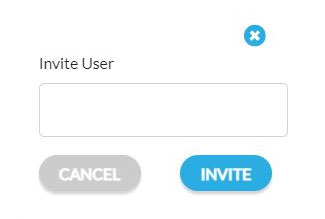
Enter the user’s email address and click on Invite.
The user will receive a welcome email and will be invited to register.
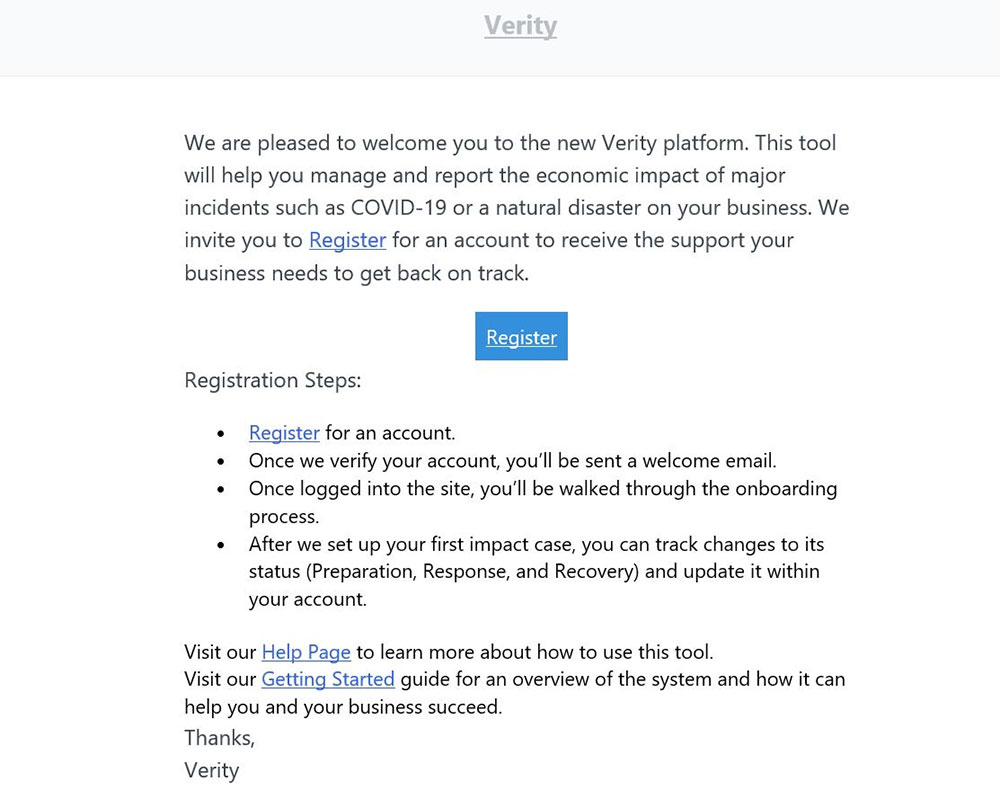
When a user registers, they will complete all New User information.
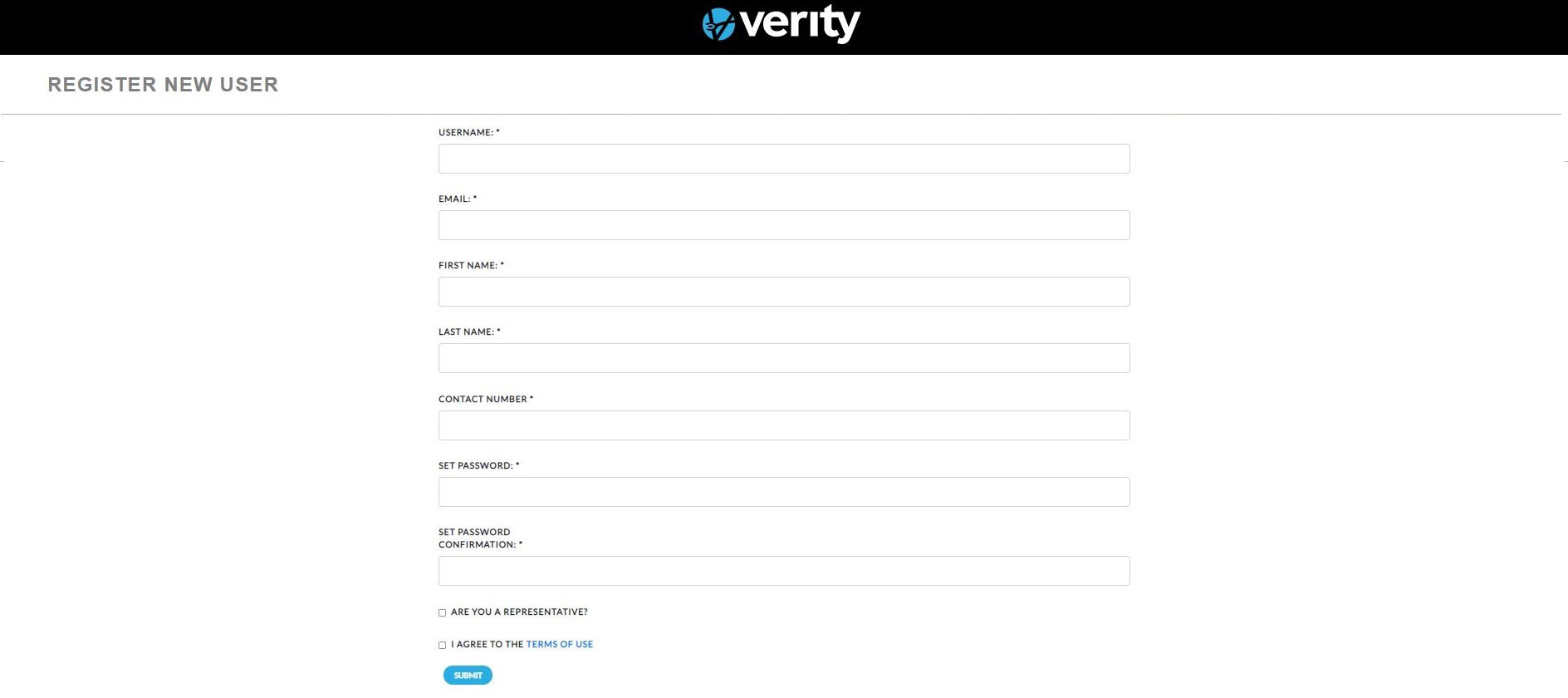
This includes entering a username, email, first name, last name, contact number, and password. Below the password are the representative and user agreement check boxes. The representative check box should be checked if the user is a representative for the owner of the business. Every user must check user agreement. All of the information is required, and the information will not be submitted unless all fields are completed. Users are given business owner access by default. Once submitted, the user will receive a confirmation email.
Before a user can access the system, however, an administrator must approve the user. To approve a user, go to Settings and click Users. The list of the users will display.
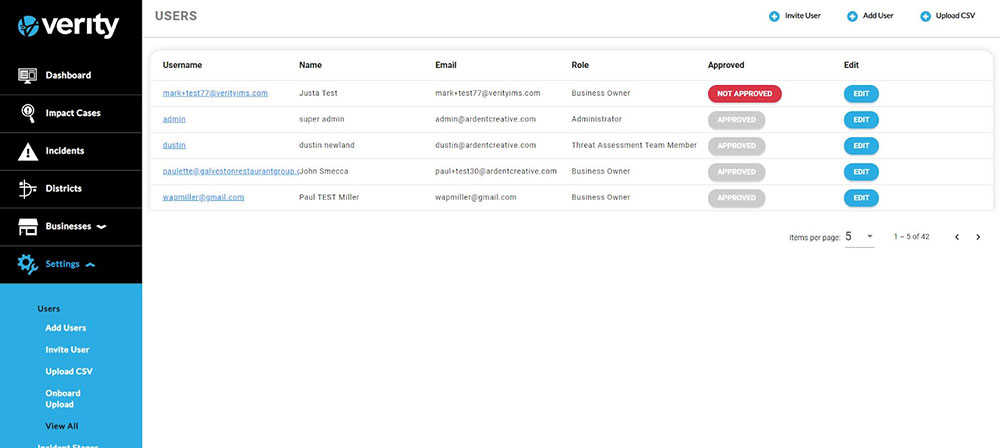
Not Approved users will have a Not Approved button in the approval column. Users can be reviewed by clicking on the users Username. To approve, Click on Not Approve and the button will change to Approved. The User will receive a welcome email confirming their account has been activated.