
Business Owner Business Entry
Businesses are created by business owners or designee (user) after they are approving them to access the Verity system. Business owners will be asked to add their business by clicking on Add Business on the welcome email.
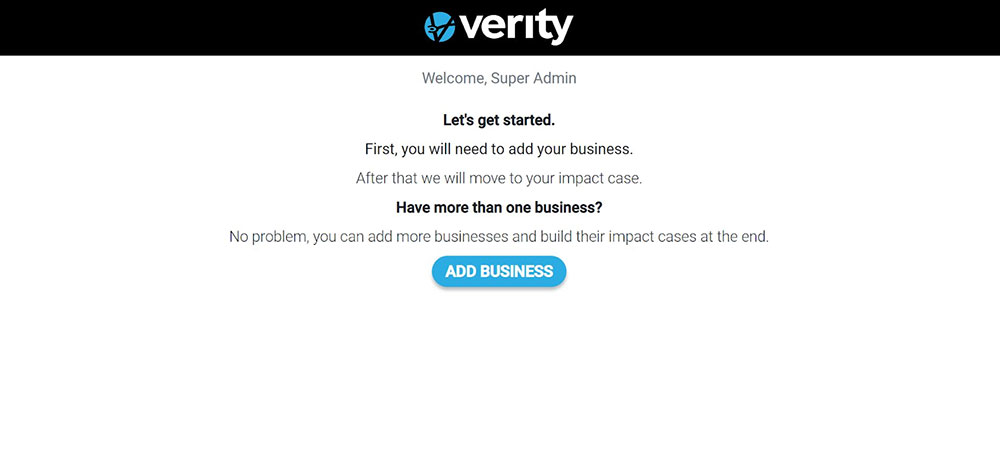
When a business clicks on the email’s Add Business button, the New Business page will display.
System Business Entry
To create a business from the Verity Dashboard, click on Business tab and then select Permanent or Temporary businesses.
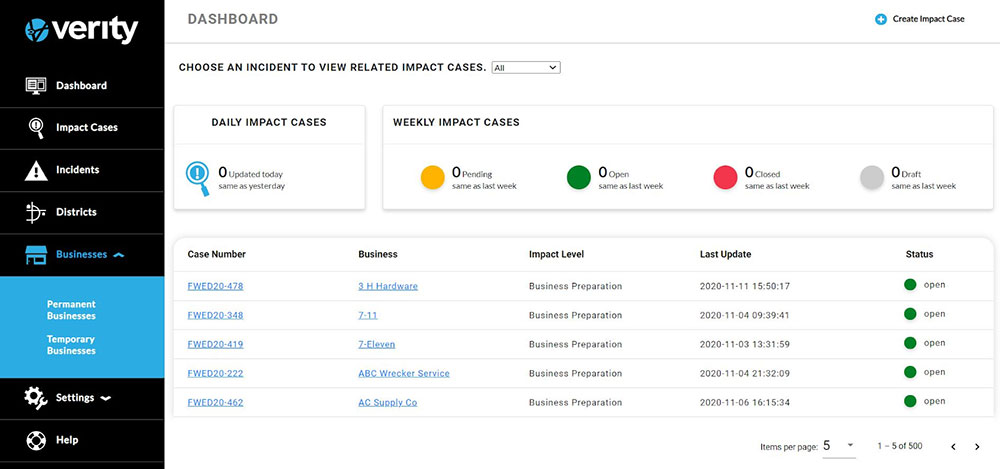
The Permanent or Temporary Page will display.
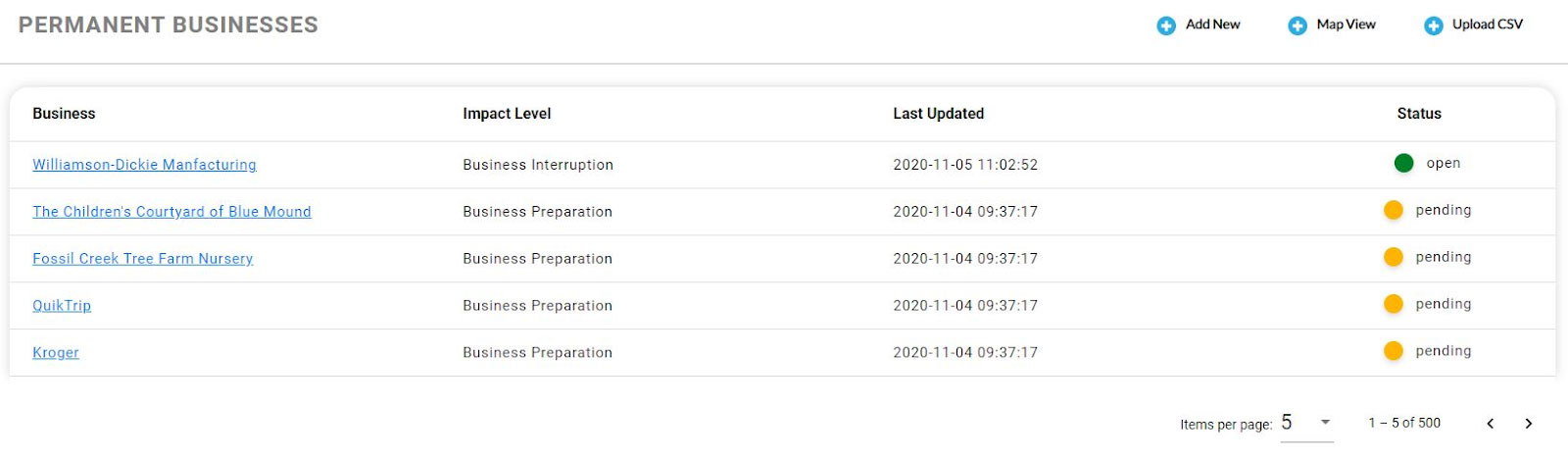
Click on Add New. The system will display the New Business entry form.

Name of Business
Type the name of the business into the field.
Business Type
The business type is based on the NAICS business code. As you start typing in the field, a dropdown will appear. The business code with the NAICS number can be selected by clicking the appropriate business type.
You may also look up your NAICS business by clicking on the Look up NAICS Business Types link above the Business Type box. This link will take you to The NAICS website.
Work Phone
There are no format restrictions on how the number is typed.
EIN
The EIN is your Employer Identification Number as assigned by the IRS for tax purposes.
Business Status
Clicking on the Business Status field activates a dropdown where Permanent or temporary can be selected.
A permanent business is any business with regular operations throughout the year.
A temporary business is a business such as a food truck or an event vendor with seasonal or limited hours of operation.
District
Clicking on the District Box will activate a dropdown with all of the districts listed. To select a district, click on the box next to the district name.
A district must be selected. Not selecting a district could cause system issues.
Do You Lease or Own?
Click on the dot next to Lease or Own to indicate if your business space is leased or owned. If Lease is selected, an Owner box will display where the owner’s name can be typed.
Do You Have Insurance Coverage?
Click on the dot next to Yes or No. If Yes is selected, Property Insurance Coverage, Flood Insurance Coverage, and Wind Insurance Coverage boxes will display. The insurance coverage amount can be entered.
Business Address
To enter the business address click on Add Address. The address entry popup will display.
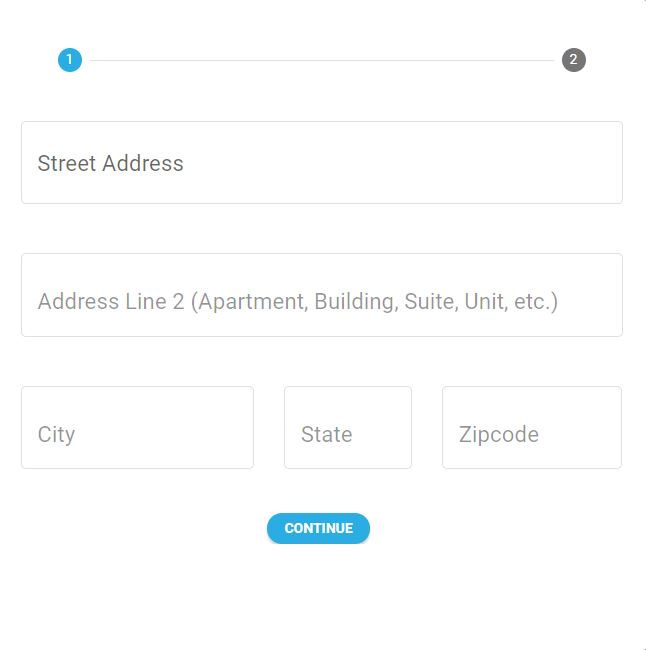
As the street address is entered, an address dropdown will appear, when the correct address appears in the dropdown, click on the address. Once the address is clicked, the city, state, and zip code will auto populate.
If the address has a number associated with the address such as a building, suite, or unit number, enter the number in the Address Line 2.
Click Continue, and the Plot Address Popup will appear.
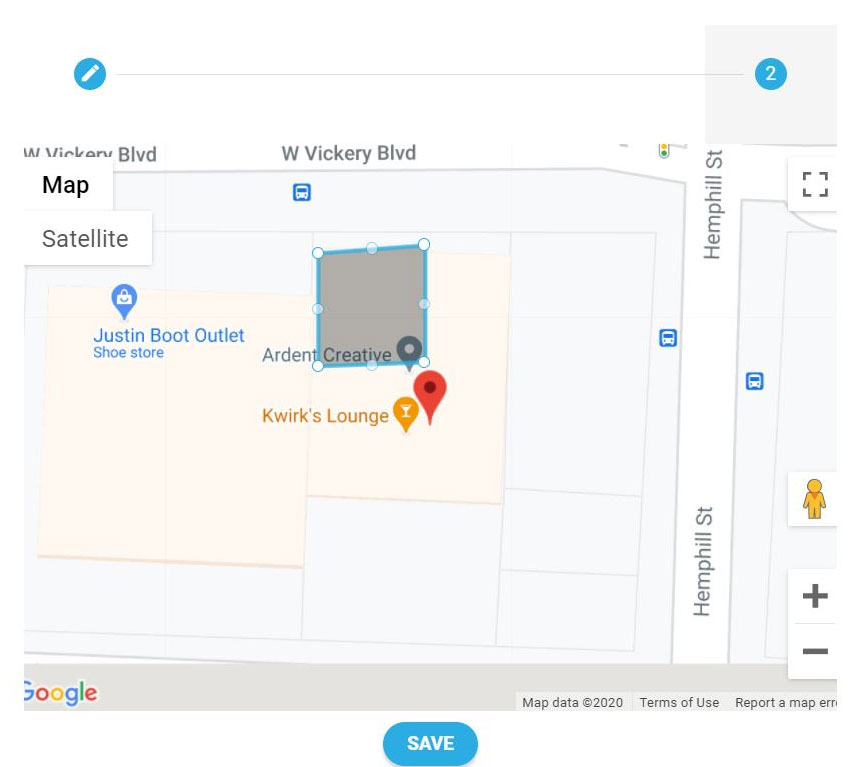
A polygon will appear on the map with 4 corner dots and 4 side dots around the polygon. The corner dots of the box will stretch the box in a square pattern. The line dots will bend or stretch the line. As the line dots are moved, other dots will appear allowing the boundary to be drawn correctly.
When the boundaries are completed, click the Save button.
After the Save button is clicked, The address with the plotted business will appear.

If all of the information is correct, click Submit. Submit must be clicked or the address and plotted business will not be submitted and will have to be reentered.
If corrections need to be made to the address, click on Edit Address and make the corrections. If the business mailing address is different from the street address, Click Different Mailing Address to enter the mailing address. Remember to click Submit when complete.