
Adding a Manager

Business Owners and Representatives are able to add a manager to manage a business or multiple businesses. The managers will only have access to the businesses they are approved to manage.
To add a manager, click on Add New Manager. The New Manager pop up will display.
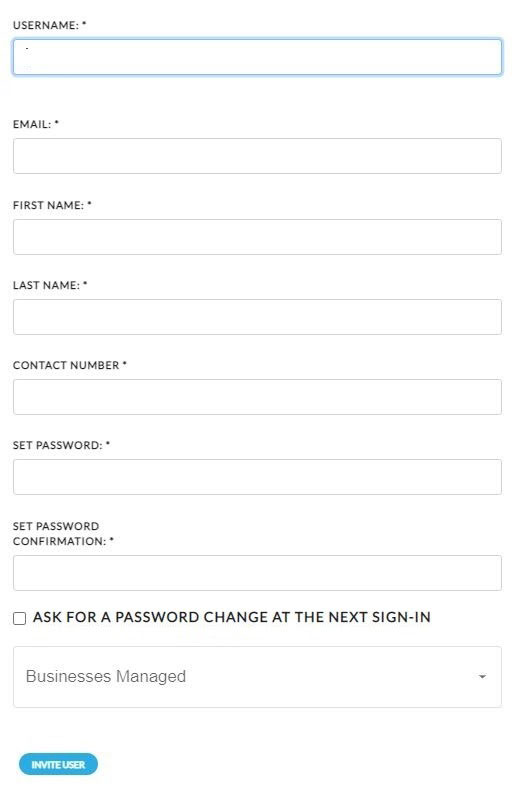
Enter the username, email, first and last name, phone number and password. After the password is entered, click on the Ask For A Password Change At The Next Sign-In box to enable the new manager to change the password. After the password change box is checked, click on Businesses Managed. A list of the businesses for the owner or representative will appear. Check the box next to each business that the business manager will oversee. After the businesses are checked, click Invite User.
Business owners or representatives should notify the managers of the username and password so they can log into the system.
When the manager logs into the system, the change password page will display.
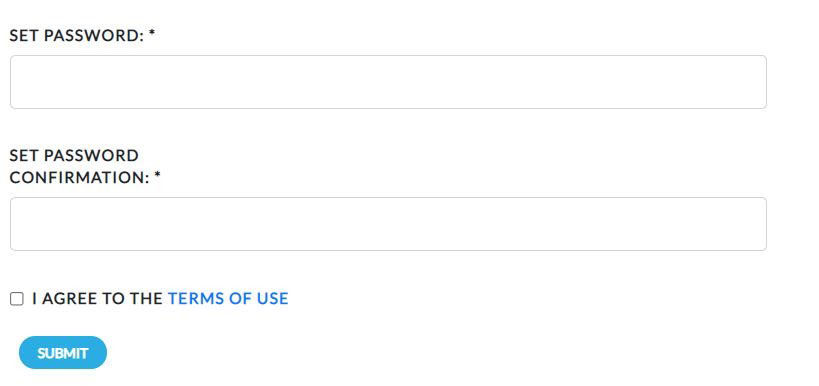
The manager needs to set their new password and the user agreement. Once completed, click Submit. The Verity Dashboard will then display.
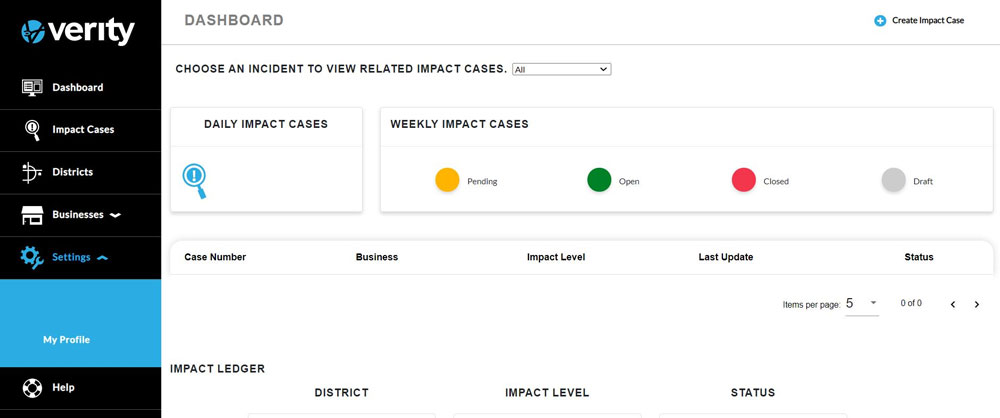
It is recommended that the manager reviews his profile and makes any necessary changes to their profile. To view the profile, click on My profile.
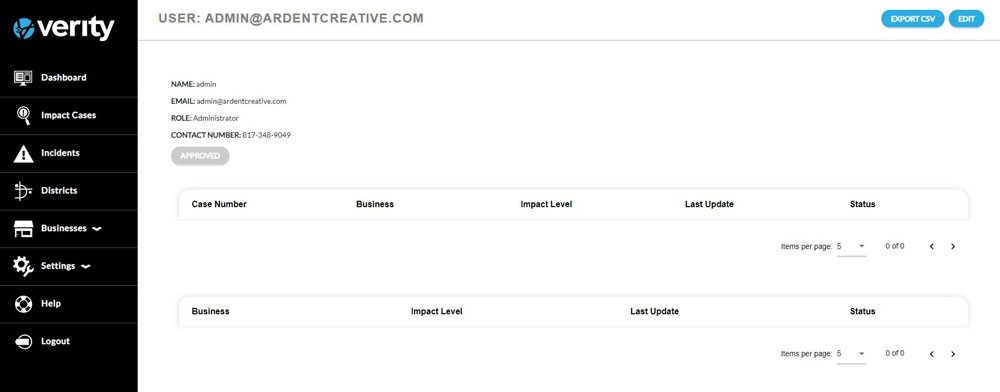
To make any changes to the profile, click Edit. After making any changes to the profile, Click Submit.